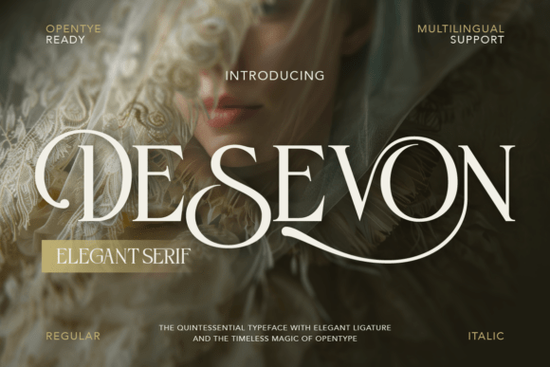
If you need a typeface that feels polished and approachable, Desevon Font delivers exactly that. It is a high-contrast serif designed for creators who want clean readability paired with subtle decorative details. The letterforms balance classic proportions with modern spacing, so headlines look sharp on screen and printed materials stay crisp at any size. Whether you are laying out a wedding suite, designing skincare labels, or building a small business brand kit, this font gives you reliable structure without feeling stiff.
What makes this serif typeface stand out for branding and print?
Desevon leans into refined details that usually only appear in premium type families. The high-contrast strokes create clear visual hierarchy, while the graceful curves keep the overall mood warm. You also get built-in stylistic alternates and delicate swashes that let you customize logotypes without switching to a separate script font. The character set covers uppercase, lowercase, numbers, punctuation, and multilingual support, so you can typeset product descriptions and short paragraphs without missing glyphs.
The font ships with regular and italic styles in OTF and TTF formats. That combination works smoothly across Adobe Creative Cloud, Canva, Cricut Design Space, and most standard design software. If you prefer pairing serifs with contrasting styles, you might also browse a clean editorial serif for body text, review the complete typeface showcase to see how the letterforms render in real layouts, or test a vintage typewriter style when you need a relaxed accent.
Which projects work best with Desevon?
This typeface was built for work that needs a quiet sense of luxury. It performs especially well in:
- Luxury branding & logos – Alternates let you craft unique wordmarks that still read clearly at small sizes.
- Fashion editorials & magazines – High contrast holds up beautifully in multi-column layouts.
- Wedding invitations & stationery – Swashes add a handmade feel without overwhelming the page.
- Beauty & skincare packaging – Clean serifs communicate trust and premium quality on labels.
- Social media & Pinterest graphics – Short headlines stay legible on mobile screens.
When you need a softer companion for longer paragraphs, a smooth reading serif can balance the sharper headlines. Keep your hierarchy simple: one display font for titles, one neutral style for body copy, and consistent spacing throughout.
How do I install and use the alternates and ligatures?
Installation follows the standard desktop process. Download the OTF or TTF files, double-click to preview, and click install. On Windows, right-click and choose “Install for all users” to avoid permission issues in older programs. Mac users can drag the files into Font Book and validate them before activating.
To access stylistic alternates and ligatures, open the glyph panel in your design software. In Illustrator or InDesign, go to Window > Type > Glyphs and filter by “Alternates” or “Ligatures.” Canva users can type the base letter, then select the replacement character if the platform supports OpenType features for that file. For Cricut or Silhouette projects, upload the TTF version, as cutting software tends to handle TrueType outlines more reliably. Use the included Desevon Characters Map to plan your wordmarks before designing.
What should I check before buying a font for commercial work?
Font licensing varies by marketplace and intended use. Before adding any typeface to a client project or print-on-demand store, verify the commercial license terms. Look for clear statements about digital products, physical merchandise, web embedding, and app usage. Most standard desktop licenses cover logos, packaging, and printed goods, but digital templates or large-scale retail distribution often require an extended license. Keep a copy of your receipt and license file in your project folder.
You can preview the full family and check current licensing options for Desevon Font directly on the marketplace. Test your actual brand words at multiple sizes, check how the letters pair, and verify that the alternates improve readability rather than just adding decoration.
Quick next steps before you start designing:
- Install both regular and italic files, then restart your design software.
- Open the glyph panel and pick 3–5 alternates to use consistently.
- Test headlines at 14px, 24px, and 48px to confirm screen readability.
- Print a single-page proof to check ink spread on your chosen paper.
- Save a style note with tracking, leading, and color codes for future projects.
Set up your type styles correctly from the start, and your layouts will look polished from the first draft to the final export.
Try It Free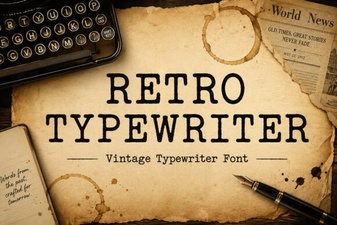 Design with Vintage Charm: Typewriter Fonts for Your Projects
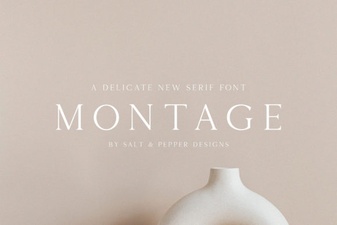 Montage Font: Creative Design Applications
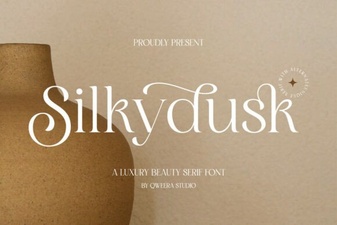 Silkydusk Font: Elegant & Creative Typeface Design
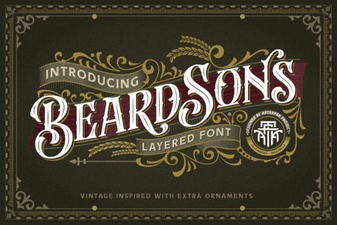 The Beardsons Font: for Creative Design & Typography
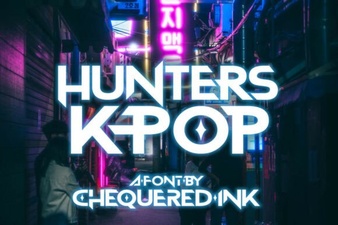 Hunters Font: Creative K-Pop Design Ideas
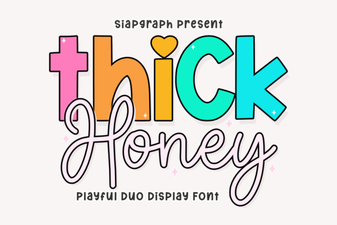 Thick Honey Duo Font for Creative Projects